
The TV show tracker
Your shows. One tap.
See the next episode of every show you watch, and mark it watched in one tap. Lazy Time remembers where you are, so you can just watch.
Free on iPhone, iPad and Android. In English, French, Spanish, Portuguese, Italian and German.
Watching is the easy part
Keeping track is not. Lazy Time remembers where you are in every show and tells you when the next episode is out.
“Wait, which episode was I on?”
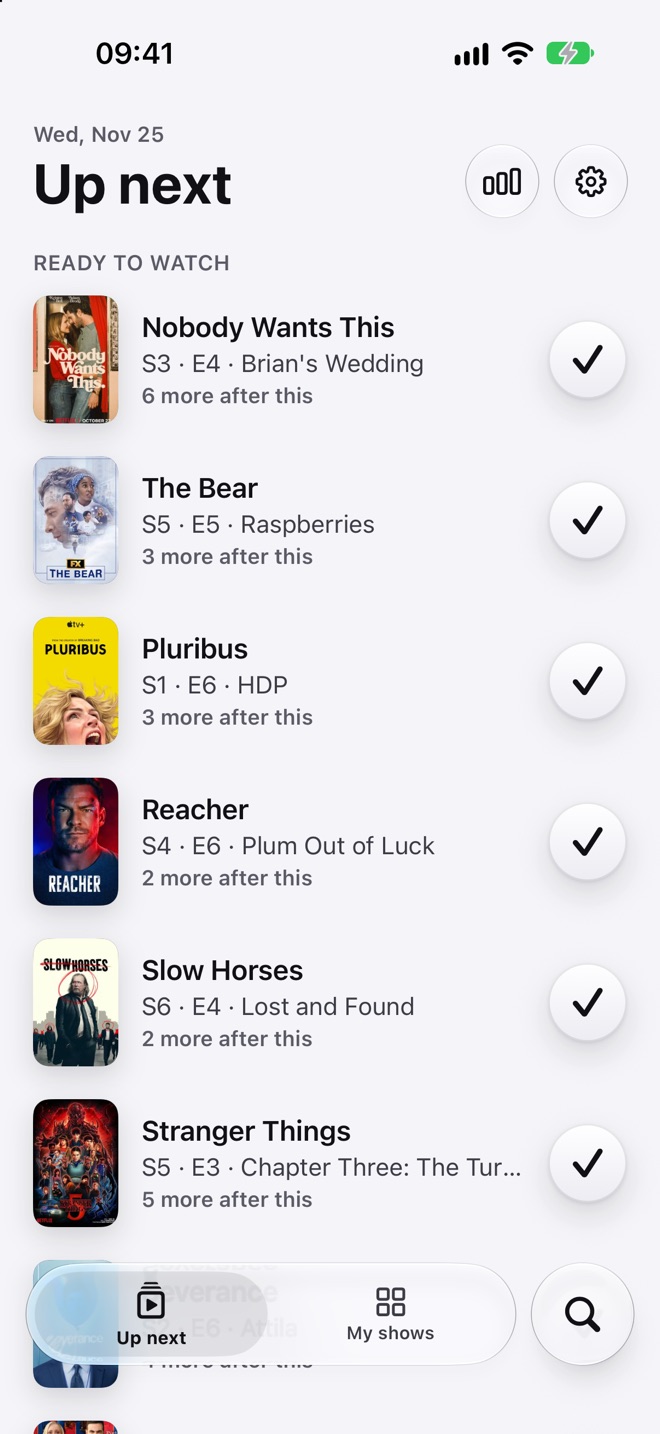
Up next shows the next episode of every show you follow. One tap marks it watched and moves you on to the next.
“When is the new season?”
Coming soon lists the next episodes and seasons with their day, and a notification tells you when one is out.
“My history is in another app.”
Bring it with you. Lazy Time reads your TV Time, Trakt or Netflix file, with the day you watched each episode.
“Why does a tracker need an account?”
It does not. No account, no email, no feed. Your shows still follow you to your other phones and tablets.
Up next
The next episode of every show
Open the app and see where you are in each show. Tap the key when you have watched an episode: it checks, and the show moves on to the next one.
- New episodes and new seasons stand out on the day they are out
- Marked the wrong one? Undo in one tap
- Shows you are up to date with wait in Coming soon, with their day
Every show
Every season, every episode
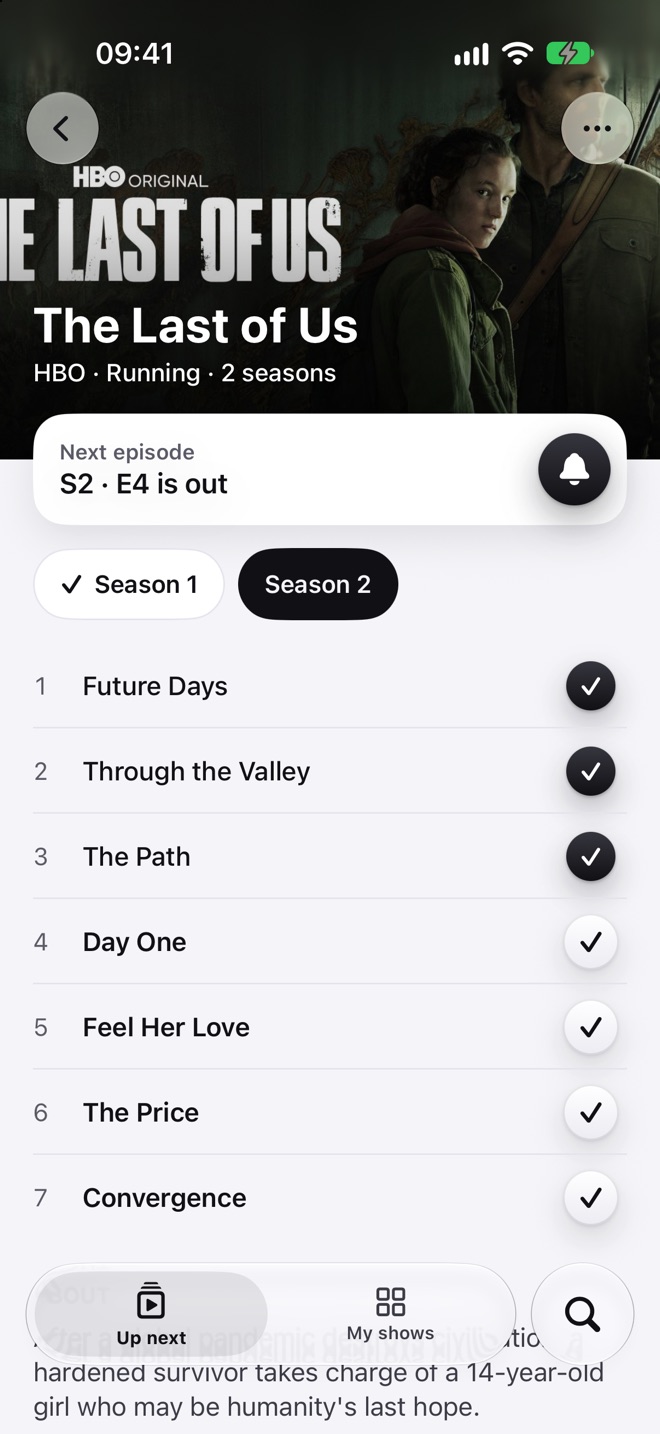
Open a show for its seasons and episodes. Mark one episode, or everything up to it, and choose whether it sends you notifications.
- Watched a whole season? Long press an episode: Watched up to here
- A notification when the next episode is out, or at the hour you choose
- Pause a show to keep it out of Up next for a while
My shows
Your whole library, sorted for you
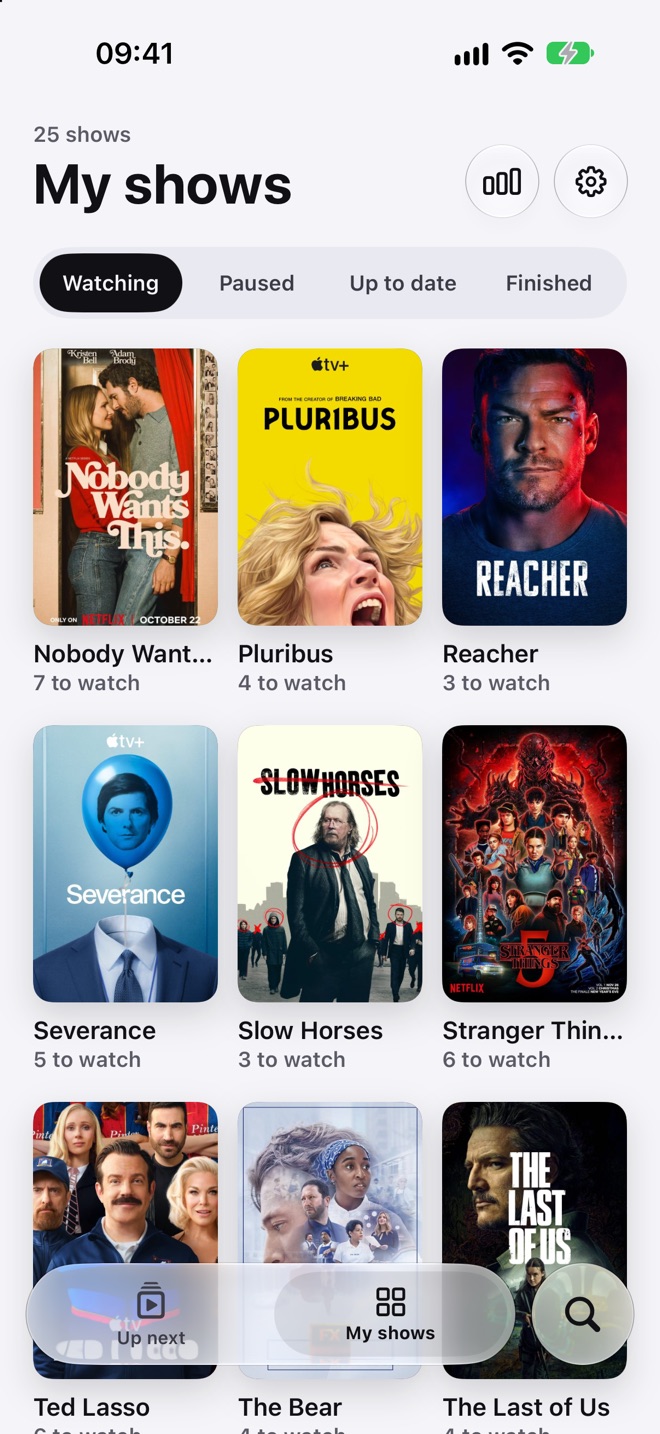
Every show you follow, as posters: the ones you are watching, the ones you are up to date with, the ones you paused and the ones you finished.
- Watching, Paused, Up to date and Finished
- Find any show by its title, even with a typo or another title
- Thousands of shows, from TVmaze
Plus
Your watching, in numbers
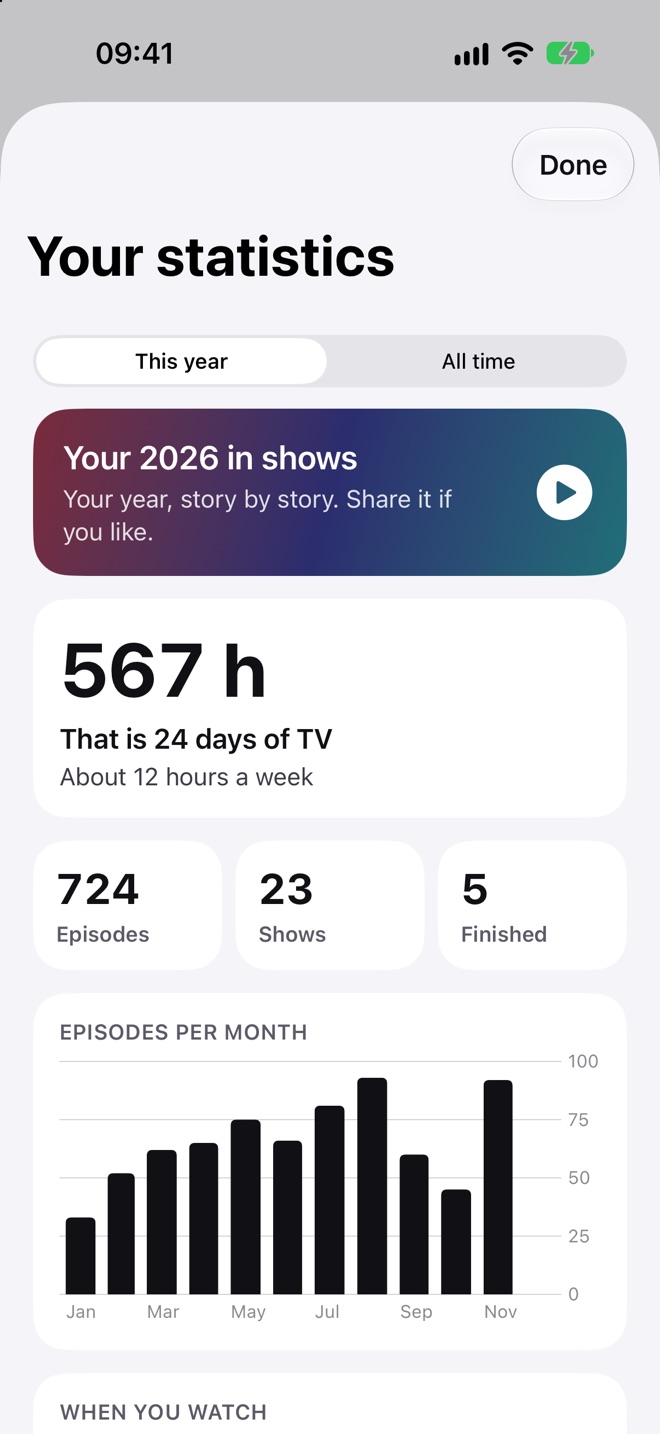
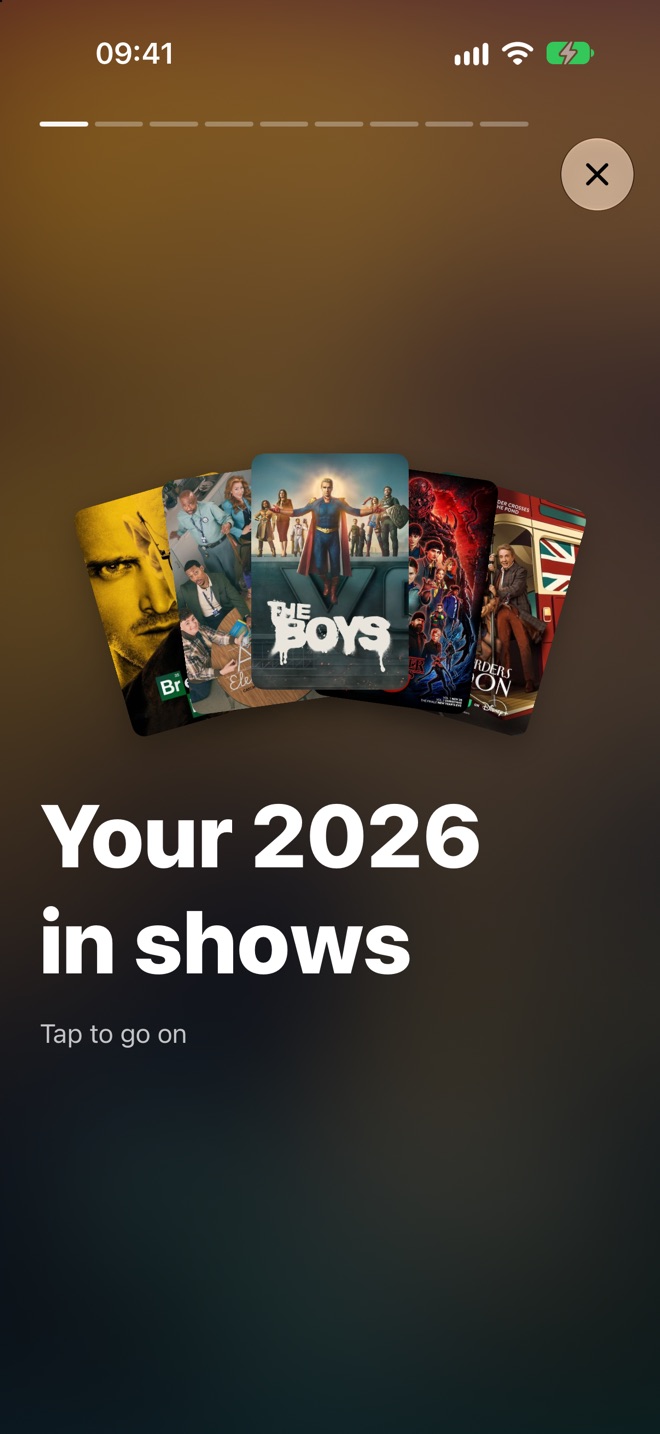
Plus adds your statistics: the hours you spent, the days and times you watch, your streaks, your genres and services, and your year in shows to share.
- This year or all time
- Your year in shows, story by story, ready to share
- Worked out on your phone: nothing is sent
Bring your history with you
Switching from another app? Import its export file in a minute, in Settings. Your shows come in with the day you watched each episode, and importing again later never counts anything twice.
TV Time
Ask TV Time for a copy of your data, then pick the .zip you receive. Only your tracking file is read: never your login or your profile.
Trakt
Trakt › Profile › Settings › Data › Export, then pick the .zip. Only what you watched is read.
Netflix
Netflix › Account › Profiles › your profile › Watch history › Download all. Your shows are added; then say where you are in each.
On all your devices, without an account
iPhone, iPad and Android: your library stays the same everywhere. A new device joins it with a code, so there is no email or password to remember.
- Settings › Link a device shows a code for your other phone or tablet
- A recovery code brings your library back on a new phone
- On a new iPhone or iPad, iCloud Keychain brings it back by itself
Ready in a minute
- 1
Add your shows
Search by title, or import your history from TV Time, Trakt or Netflix.
- 2
Say where you are
Not started, somewhere in between or up to date: Up next starts from there.
- 3
Tap as you watch
One tap per episode. New episodes come to Up next on the day they are out.
Free, with Plus for more
Lazy Time is free, with a small ad on show pages. Plus takes the ad away and adds your statistics and your year in shows.
Free
Every show, Up next, notifications, imports and all your devices. A small ad on show pages.
Plus, yearly
No ads, your statistics and your year in shows. Renews each year; cancel any time.
Plus, lifetime
Everything in Plus, paid once and yours for good.
Coming next to Plus: suggestions from what you watched, and widgets for your Home Screen.
Why Lazy Time
Because the best part of a show is watching it, ideally from the couch. Lazy Time does the remembering, and nothing else: no feed, no comments, no spoilers.
Questions
How do I move my shows from TV Time?
Ask TV Time for a copy of your data. You receive a .zip file: in Lazy Time, open Settings › Import a TV Time file and pick it (the .zip, its folder or the file tracking-prod-records-v2.csv inside). Only that file is read, never your login or profile. Your shows come in with the day you watched each episode.
How do I import from Trakt or Netflix?
Trakt: Profile › Settings › Data › Export, then Settings › Import a Trakt file in Lazy Time. Netflix: Account › Profiles › your profile › Watch history › Download all, then Settings › Import a Netflix file. Netflix rarely says which episode you saw, so mark where you are on each show.
Do I need an account?
No. There is no sign-up, email or password. Your library is kept on our server under a random key, not under your name, so your devices stay in step.
How do I use Lazy Time on another phone or tablet?
On the device that has your shows, open Settings › Link a device › Show a code. On the other device, open Settings › Link a device and type it. The code works once, for 10 minutes, between iPhone, iPad and Android.
What if I lose my phone?
On a new iPhone or iPad signed in to the same Apple Account, iCloud Keychain brings your library back. On Android, it comes back when you set up the new phone from your Google backup. You can also keep your recovery code (Settings › Recovery code) and type it in Settings › Link a device.
Get back to your shows
Free, no account. Your next episode is one tap away.